

The Palette Builder
Palettes are a simple yet powerful way to create presentation templates presenting data in Excel. Zen users and Pebblers can reuse palettes to create beautiful reports for your organization.
What about Excel's format painter?Excel's format painter provides similar functionality, but with the palette builder your organization can formally capture its presentation style for all Zen users!
Click on Palettes to open the palette builder. You will see a list of available palettes, plus the option to create a new one.

The palette builder view. Click on a palette to see the available styles, or create your own palette.
Clicking on a palette shows you the available styles. This palette doesn't have any yet. You can add a style by clicking on the "Add Style" button.

Add a style from a cell in a worksheet to the palette.
But first, let's find a cell with the style we want to add. Use the Format Cells option provided by Excel to format the cell in the style you want. Once that is done, we can capture that style to the palette.
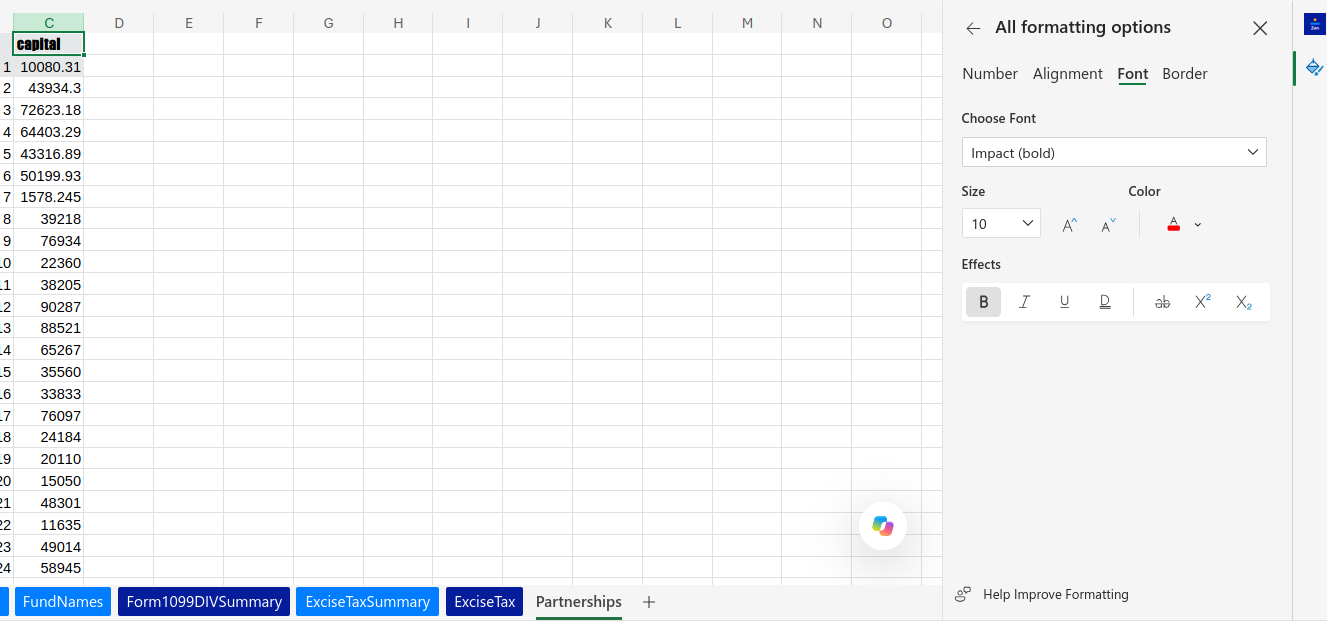
Format your cell in the style you like using Excel's cell formatting feature.
Then we can capture that cell's formatting into the Zen palette. Click on the cell, then click on "Add Style".

Clicking on "Add Style" will capture the style of a cell.
Name your style, add a useful description, then add a unique name that could be used to reference this style programmatically. This will allow workflows to automatically tell Zen how to present groups of cells. It is not necessary to understand this to manually use styles in Zen.
Click "Save style" to save this style to the palette.

Describe your style, then save it to your palette
Once you save the style, it's added to the list of available styles on this palette. An image of the style is displayed, along with style details.

Zen captures an image of the style to help users understand what the style looks like.
To manually apply a style, click on one or more cells, then click on the paint icon to paint the style onto the cells.
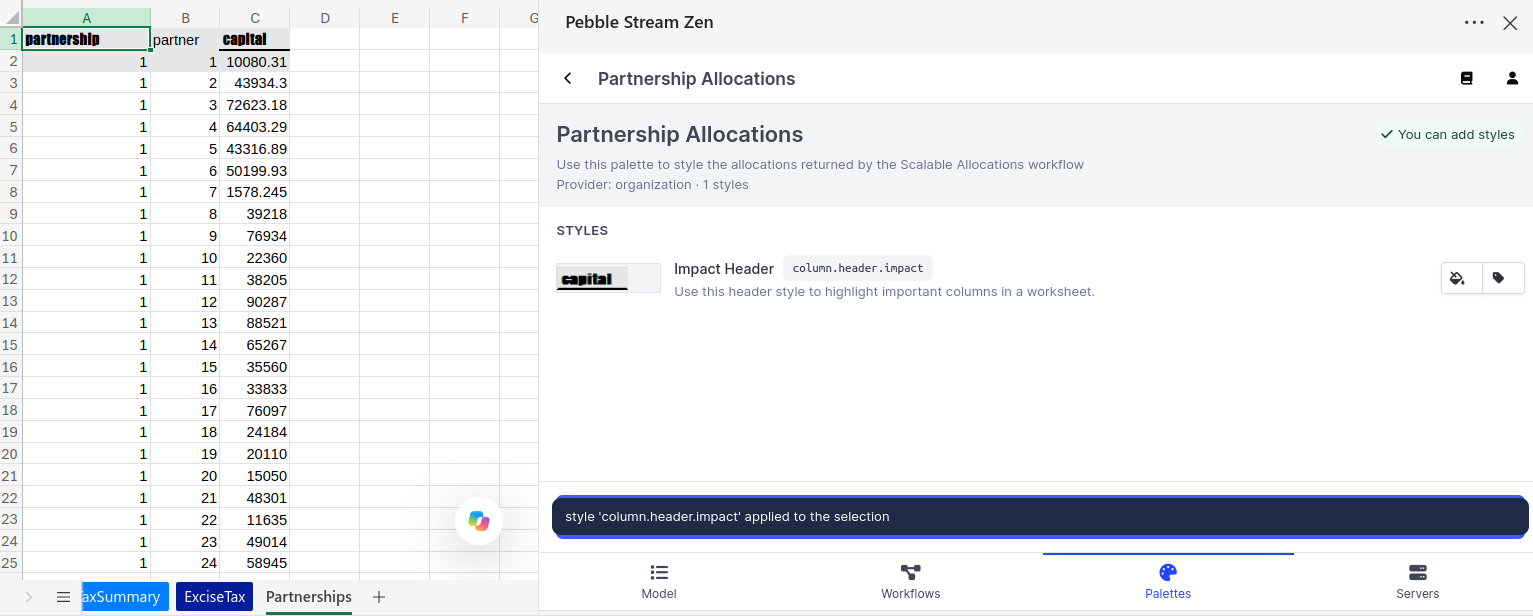
Click on the paint icon to apply the style to one or more cells.
You can create styles for numbers as well! Repeat the process to add a style, then highlight a range of numbers and click the paint icon to apply it.
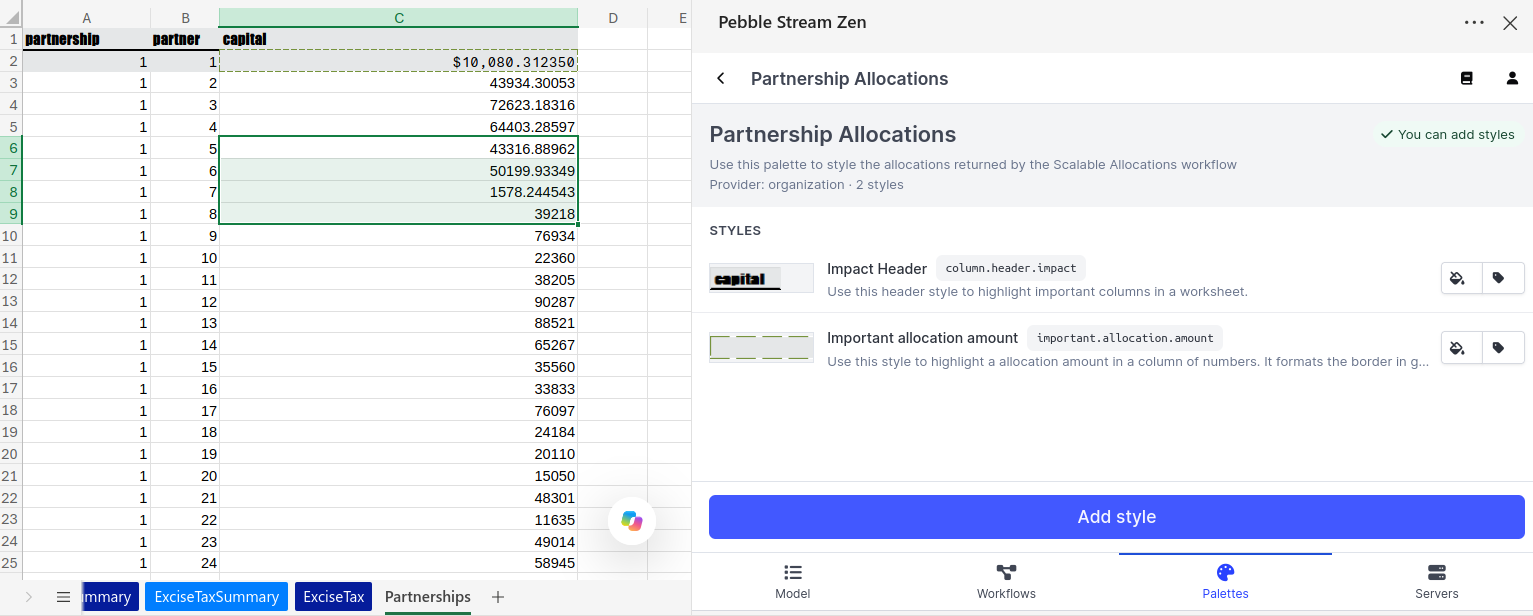
After saving a number style, highlight a range and click on the style's paint option to apply.
Once applied, the range of values will have that style.
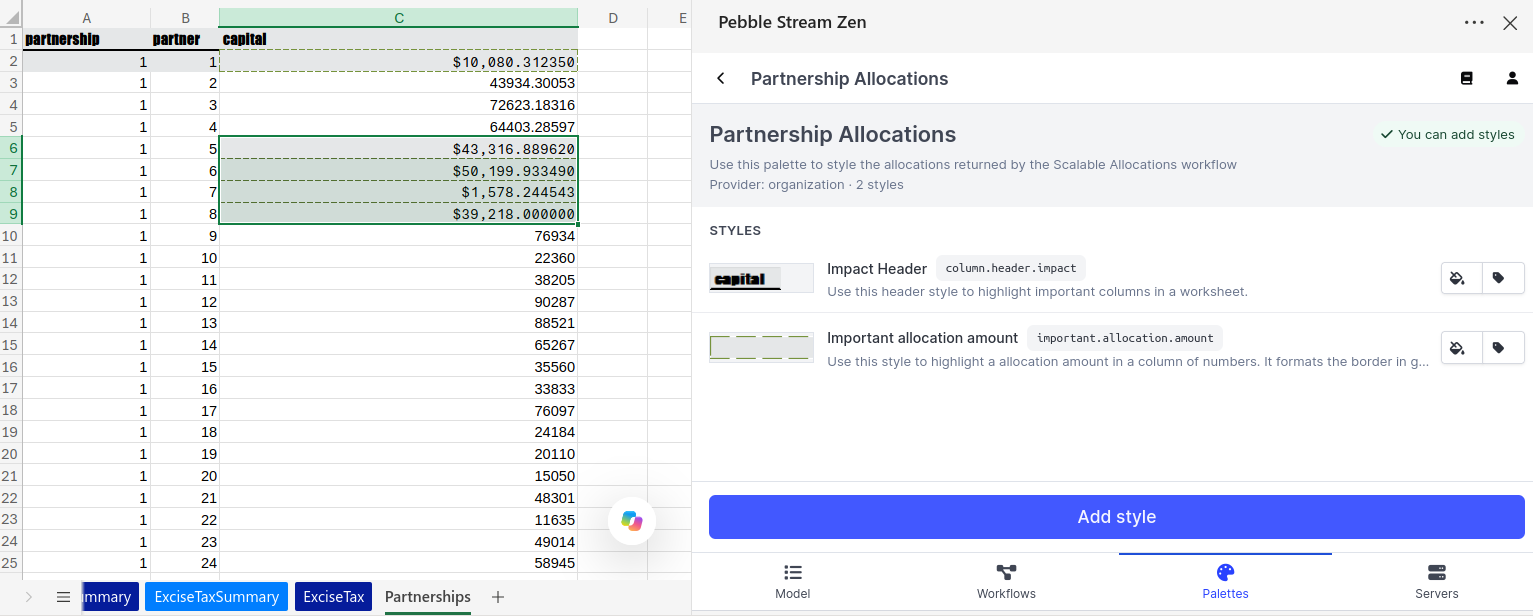
You can easily apply styles to ranges of cells.
Now the numeric style is applied!
Updated about 6 hours ago