

The PebbleScript Editor
Write PebbleScript faster with Zen's embedded directives editor.
Zen's PebbleScript editor is a marked improvement over editing comments to embed Pebble Stream directives. It provides validation, autocomplete, and easy-to-read error messages for directive, worksheet, and column header names.
Quickly write directive names
Just start typing a directive's name and have the editor autocomplete it for you. You no longer have to type the "pebblestream:" prefix! The editor will do that for you when you select your directive by pressing the 'enter' key.
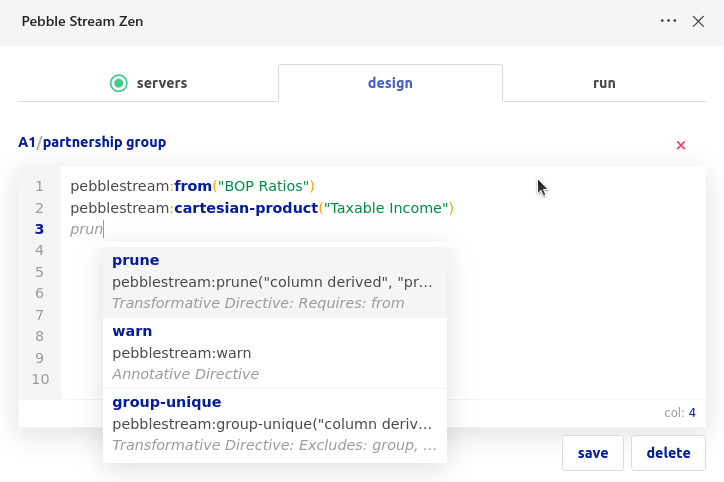
Typing "prun" suggests the prune directive as a choice. Press 'enter' and the editor will write "pebblestream:prune("")!
Autocomplete worksheet names
When typing within the parentheses of a directive, and a worksheet name is expected, start typing the worksheet name you want, and the editor will present you with the best-matching worksheet names. Press the 'up' and 'down' arrow keys to navigate the suggested selections. Press the 'enter' key to autocomplete.
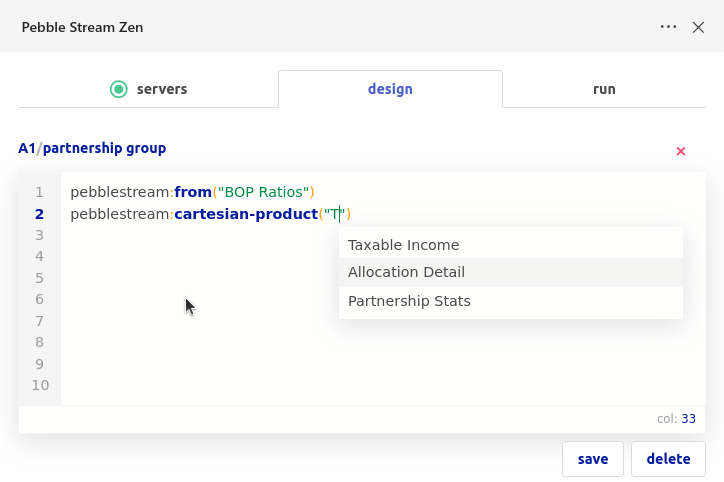
When the directive expects a worksheet as a parameter, the editor will autocomplete it.
Autocomplete headers
When typing within the parentheses of a directive, and a header name is expected, start typing the header name you want, and the editor will present you with the best-matching header names. Press the 'up' and 'down' arrow keys to navigate the suggested selections. Press the 'enter' key to autocomplete.
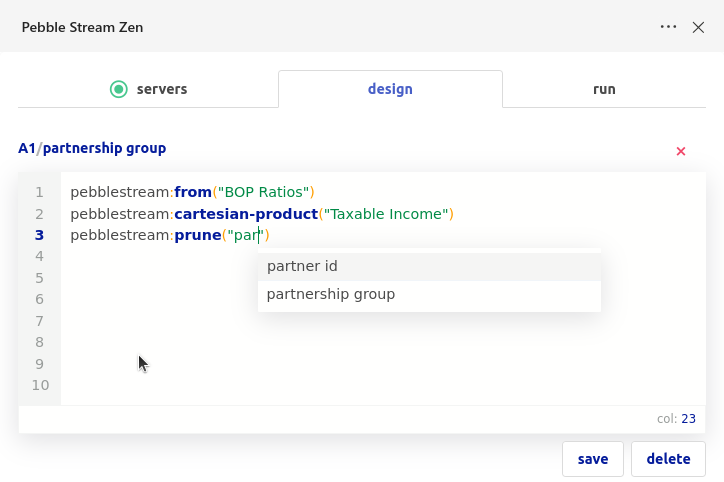
The editor will autocomplete header names for directive parameters that expect header names as input.
Quickly jump to Pebble Stream directive documentation
Hover over a directive name to see a pop-up that describes how the directive works. You can see what directives cannot be combined with the selected directive, and a convenient link to that directive's online documentation is provided.
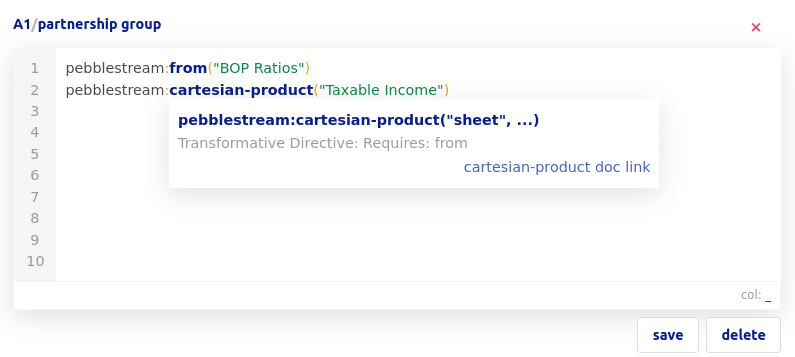
Hovering over the cartesian-product word displays a doc snippet that includes a link to its online documentation.
Read error messages on the editor footer
Whenever Zen fails to validate a sheet, if the error is in the directives, clicking the pink cell opens the editor, which conveniently displays in the footer.
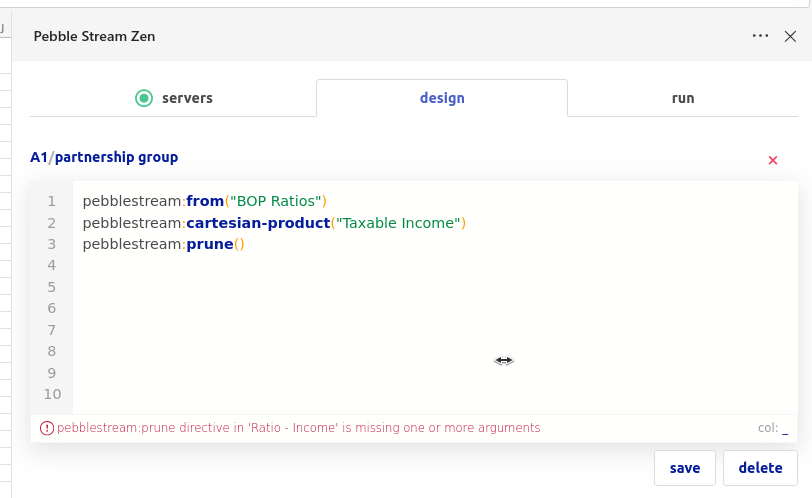
The editor footer displays the error message returned for this PebbleScript that failed to compile.
We will continue enhancing the PebbleScript editor. Please let us know what you think!
Updated 10 months ago