

Quick Start
A step-by-step guide to help you get started with Zen Addin for Microsoft Excel.
Installing Zen on Microsoft Excel
Click the Microsoft Excel Add-ins button, then search for Pebble Stream Zen.
To use Pebble Stream Zen, you must have a user account. Currently, you must request access from your company's Pebble Stream administrator.
Logging into Pebble Stream Zen
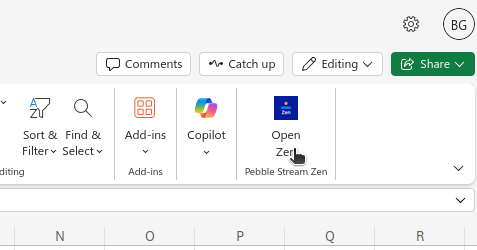
Click on the Open Zen button in Microsoft Excel's Home menu bar to load the Pebble Stream Zen onto your spreadsheet.
The design tab
When Pebble Stream Zen is loaded on a new spreadsheet with the initial Sheet1 worksheet, the design tab will be presented.
This tab has three main features:
- the validate button
- the execute button
- the dependency graph
The validate button
Clicking the validate button checks whether the spreadsheet is suitable to run as a Pebble Stream process. Validation entails checking that all functions used in the spreadsheet are supported by Pebble Stream, that all Pebble Stream directives are well-formed, and that no worksheet cycles exist. All worksheets are classified as input, transient, or output.
When validation succeeds, the chances of this spreadsheet running correctly are greatly enhanced.
The execute button
Clicking the execute button validates the spreadsheet, then executes it. First, the input worksheets are analyzed for correctness, then the transient worksheets are executed, and finally, the output worksheets are executed. During this process, the designer's Pebble Stream directives perform transformations, conditional drag downs, data validations, and logic error detection.
The dependency graph
Whenever validation completes successfully, Zen will present a dependency graph. The dependency graph illustrates the relationships among worksheets in the spreadsheet. The grey circles represent the input worksheets, the blue diamonds represent the transient worksheets, and the navy hexagons represent the output worksheets. The arrows indicate dependency between two worksheets, pointing in the direction of data flow.
The node colors are also used on worksheet tabs.

Spreadsheet tabs are color-coded to highlight input, transient, and output worksheets.
Designers may use their scroll button to zoom in or out on graph nodes.
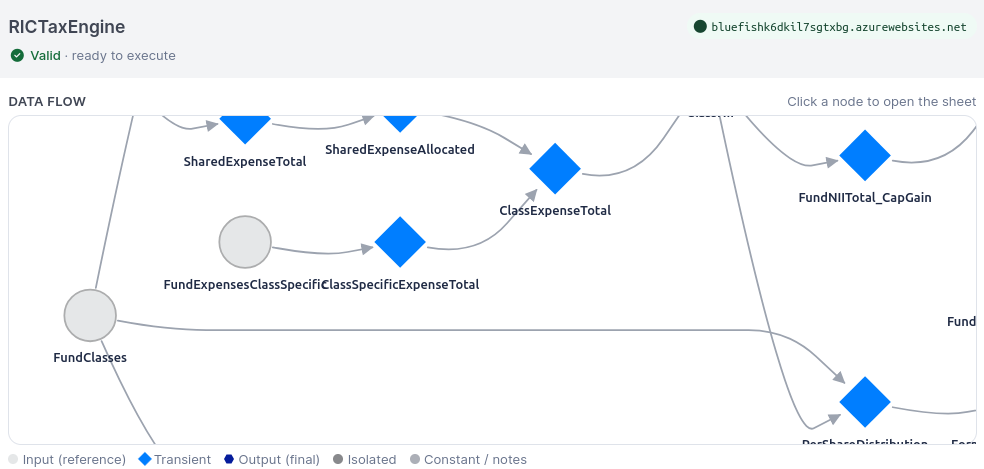
Zoom in or out of the dependency graph view.
Clicking on a node in the dependency graph will cause Microsoft Excel to navigate to that worksheet tab.
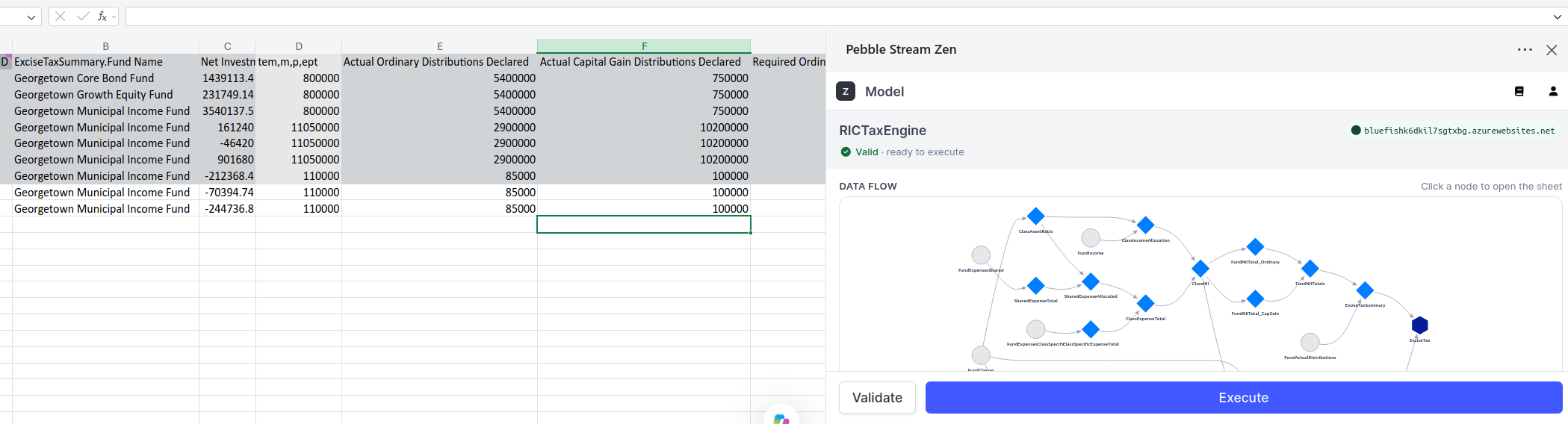
Navigate to a worksheet by clicking on its icon on the dependency graph.
Clicking on any cell in the first row of a worksheet activates the PebbleScript editor. The editor provides autocompletion support when writing directives and saves PebbleScript to comments in the active cell. The editor reports PebbleScript errors in its status bar.
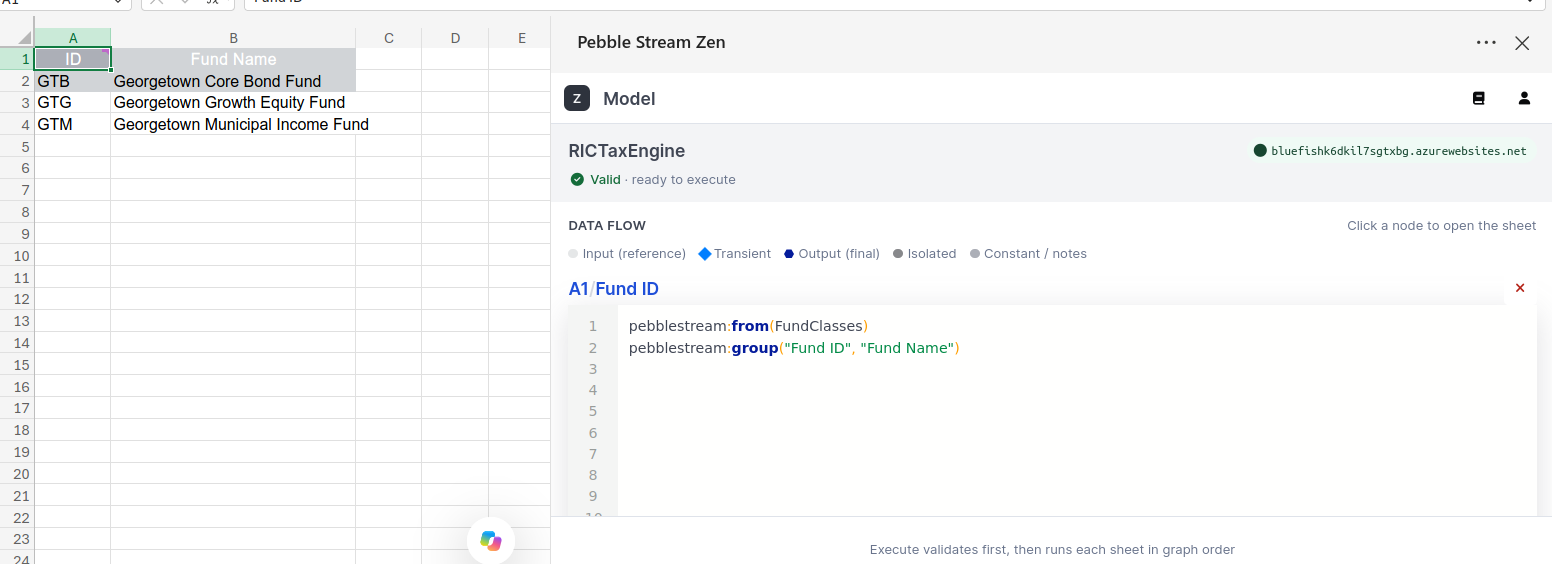
The PebbleScript editor provides documentation and autocomplete assistance to reduce scripting errors.
Clicking on any other cell in the workflow returns the user to the dependency graph view.
The servers tab
The servers tab enables connectivity between the securely logged-in Zen user and any Pebble Stream Flow server. The Zen user must have an account on the Flow server with the same email address.
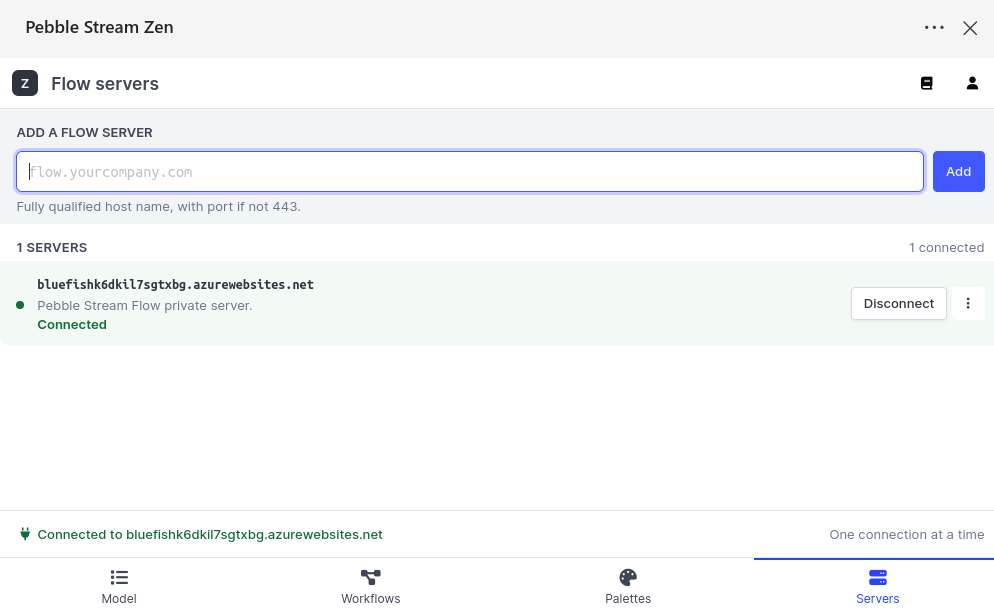
Use the "add a new server" field to verify and establish Zen user access to a Flow server.
To add a server, enter the server's fully qualified domain name in the "ADD A FLOW SERVER" field. Your Pebble Stream Flow administrator will provide you with the server's domain name.
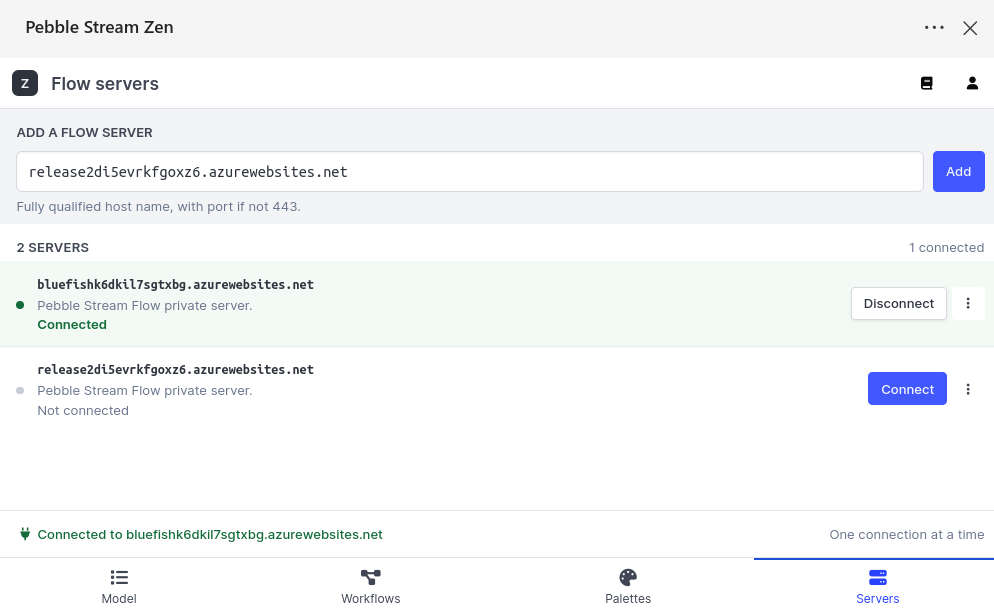
Zen users can connect to multiple Pebble Stream Flow servers.
If the Zen user is allowed to connect to that server, the server will be added to the list of available servers. A connection icon is displayed. Note that a user may add multiple servers to the available server list.
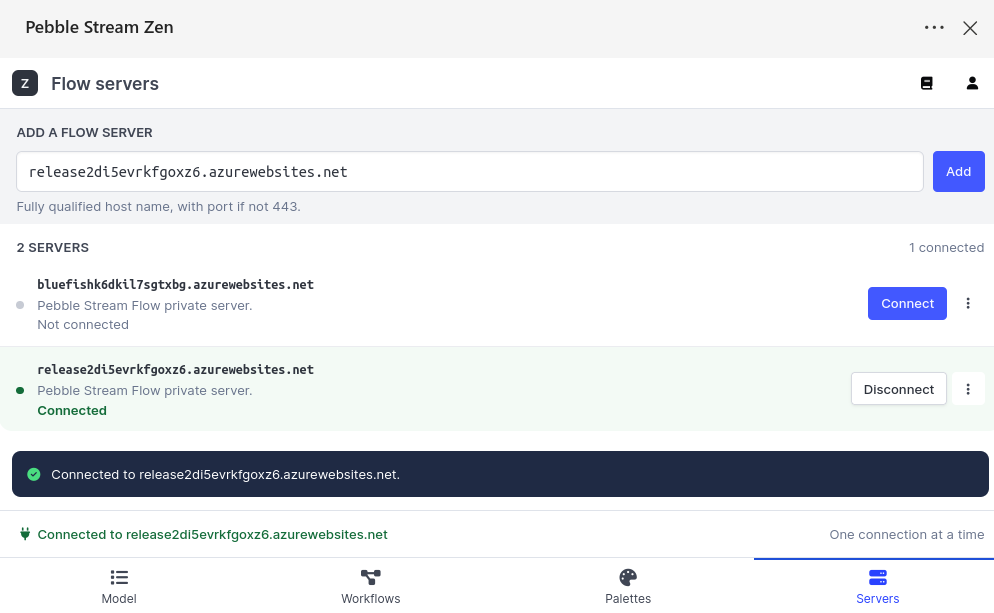
This server was successfully added to the Zen user's list of available servers.
Click on the connection icon to connect. If successful, the server entry will be highlighted and "Connected" will be displayed. A disconnect button will appear.
At this point, the Zen user can view available workflows on the run tab. Clicking the red stacked dots opens a delete option to remove the server from the list of available servers and disconnect the Zen user from it.
You can re-add that server later if needed.
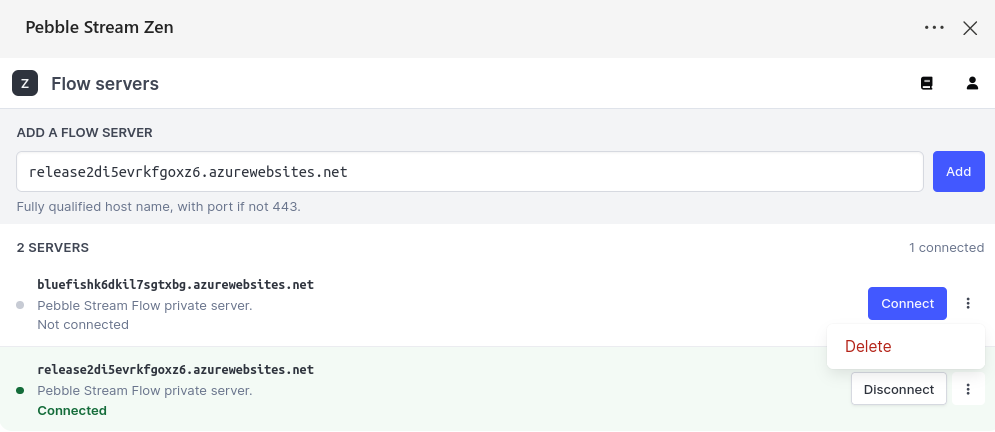
Flow servers can be deleted. You can re-add them later if needed.
The Workflows tab
Zen users can submit requests to a connected Flow server via the "Workflows" tab. If the Zen user belongs to a team that has associated workflows, those workflows will be displayed under "Workflows". In the screenshot below, this user's team has both the "Scalable Allocations" and "RAR template generation" workflows.
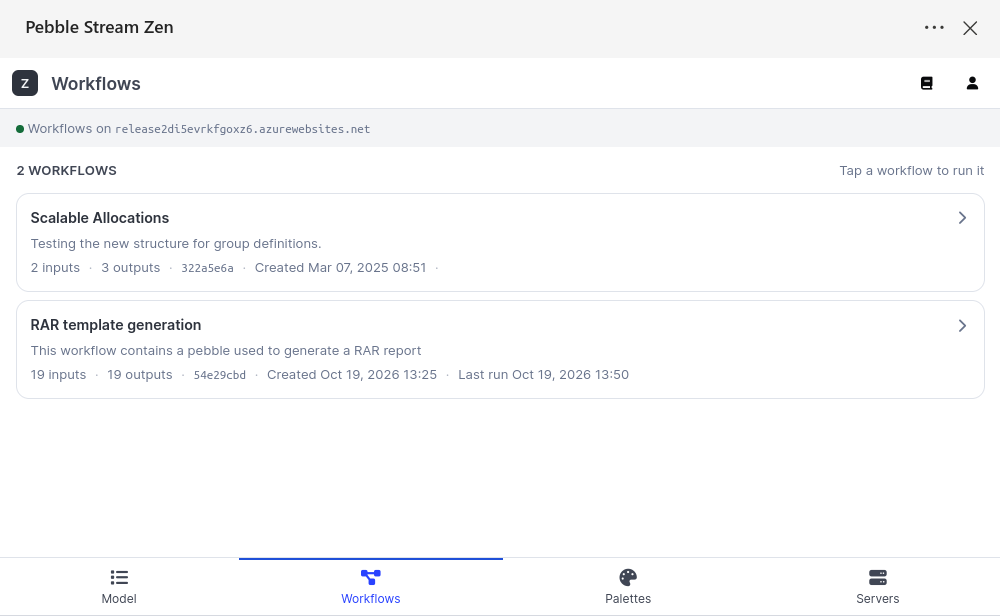
Zen displays this server's workflows. To see a workflow, you must be a member of one of the workflow's teams.
Workflows are associated with user teams via the Flow UIThe Flow administrator is responsible for adding users to teams and associating workflows to teams.
Clicking on a workflow card displays the workflow details. You can see the expected input sheets, create the input sheet from templates, submit those input sheets to the workflow to run, or view previous requests using the "History" button.
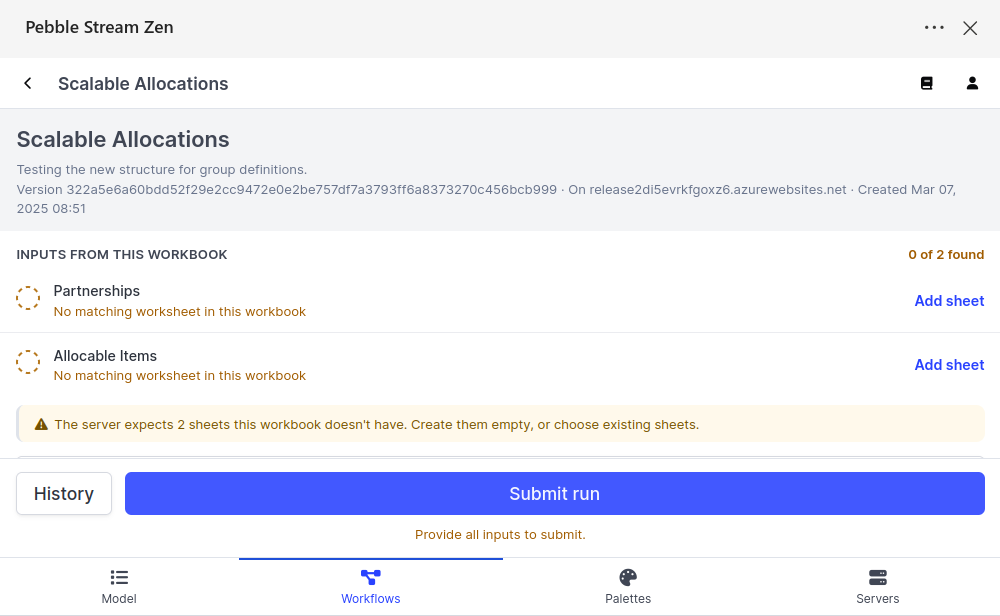
Zen will display this workflow's expected input worksheets. This makes it easy to set up if they don't exist.
Clicking the "Add sheet" link provides the option to create an empty sheet by that name or use an existing sheet with a different name. In the example below, the Scalable Allocations workflow expects the "Partnerships" worksheet as input.
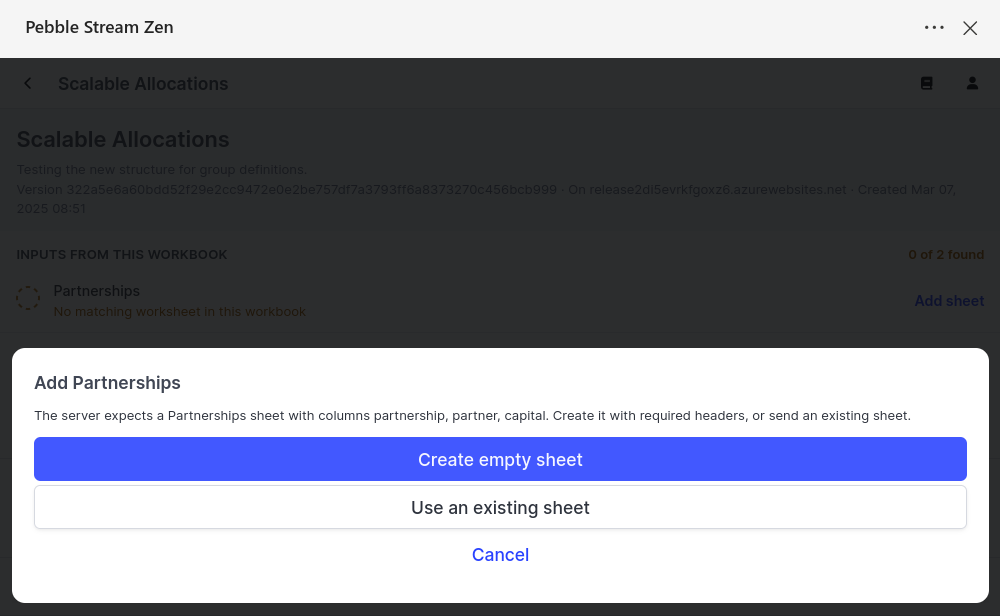
Create an empty input sheet, or reuse another sheet with the expected headers and types.
You can reuse other sheets with different names. Just make sure they have the expected headers.
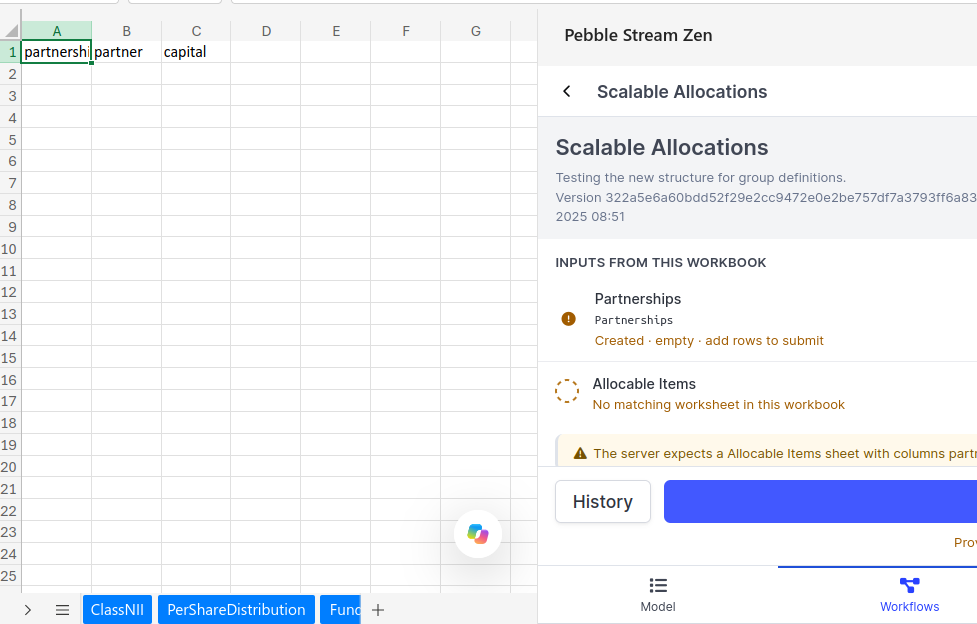
The input worksheets are automatically added to the spreadsheet when the add sheet link is clicked.
Clicking load creates all the input worksheets and automatically sets the expected headers for each input worksheet.
Once the input worksheets are prepared, the Zen user can enter the expected data for each worksheet. You can do this manually or programmatically using VBA or another mechanism.
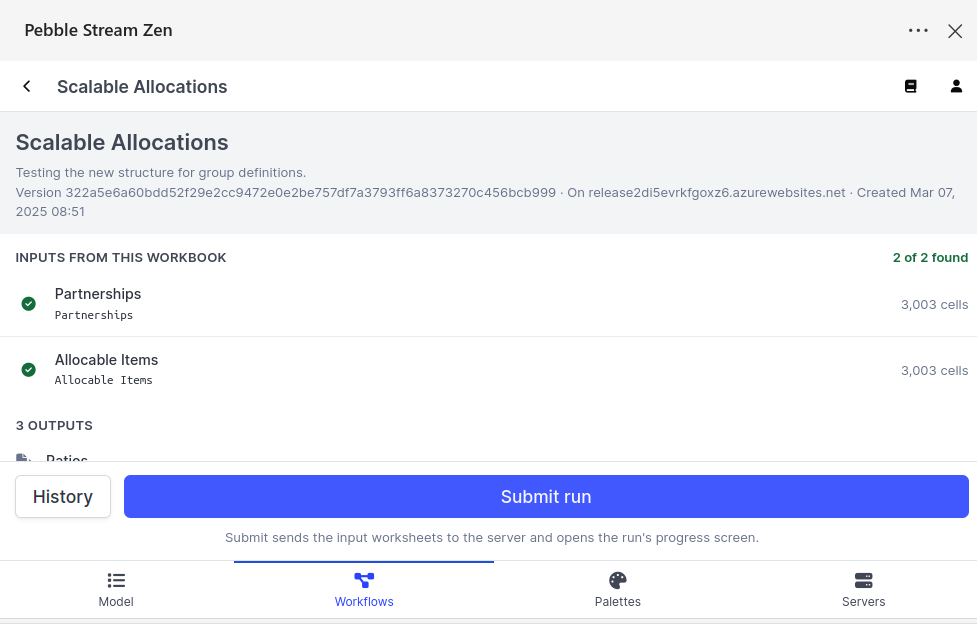
Fill in the expected data into the workflow's input sheets.
Once the input data is entered, click the "Submit Run" button to send it to the Flow server for processing.
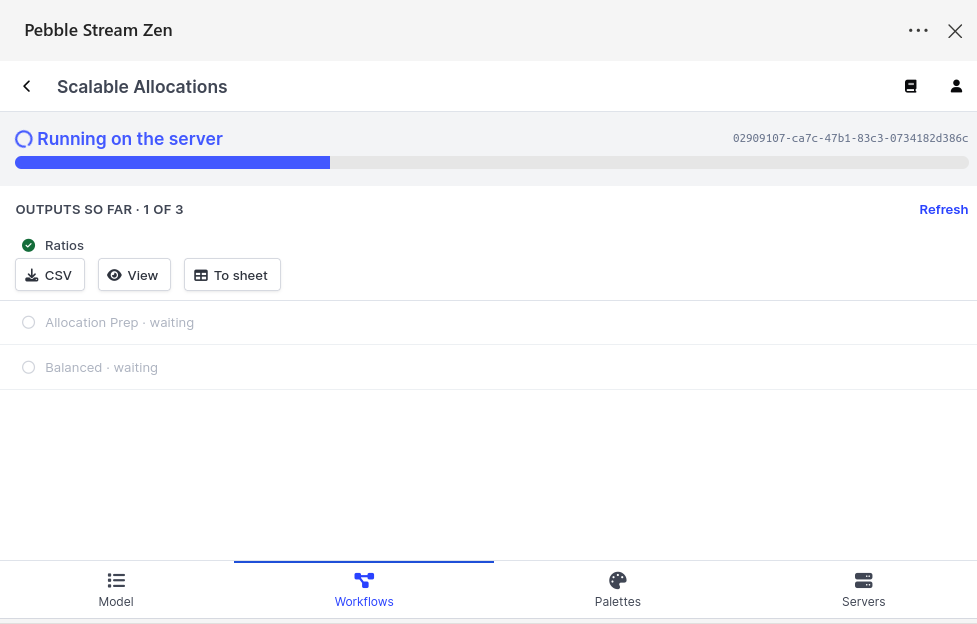
Zen will monitor the workflow and present finished worksheets for download while the others finish processing.
Zen will display progress as the workflow runs. When an output worksheet is ready, it will present it for download while the workflow continues processing the other sheets. You can download to a CSV, populate a worksheet, or, for requests that produce more than Excel can handle, view them using the Zen data browser.
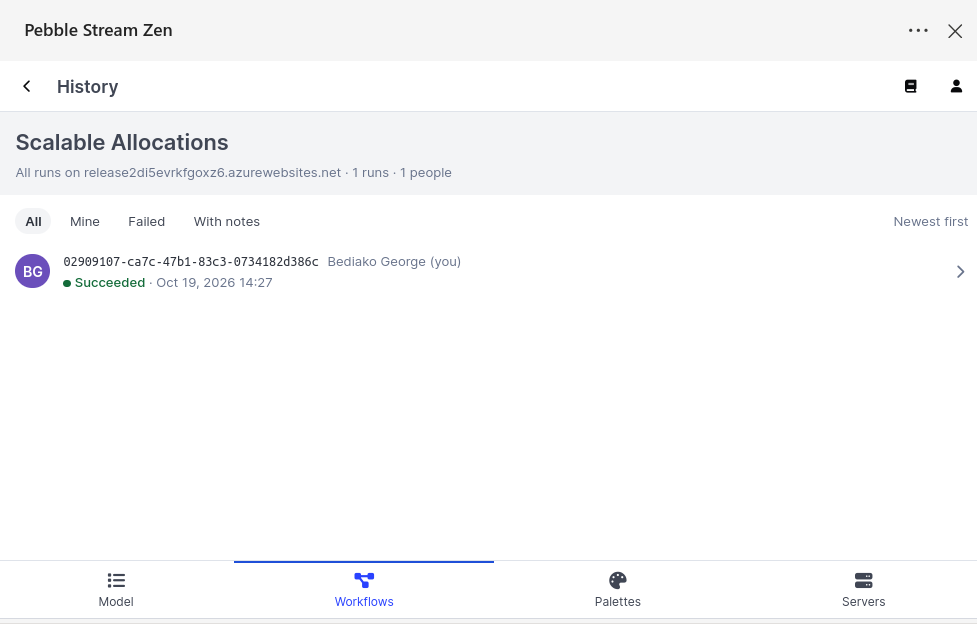
View previous requests to this workflow via the history tab.
Zen users can continually submit requests to workflows. The history of all requests sent to the workflow is made available for download.
Updated 4 days ago