

Troubleshooting
Sometimes things get off track while using Zen. This page will help you get back to a good place.
Error while analyzing sheet ...
Microsoft Excel 365 has size limitations for worksheets. In the web version, worksheets with as few as 25,000 rows can cause errors when accessed.
If Zen reveals the offending sheet, reduce the number of rows in that sheet before continuing your design.
Remember that when running Zen in designer mode, your main object is to create a representable template for your workflow steps. Rarely does this require 25,000 or more rows of data.
How to Enable Third-Party Cookies
Some browsers have default settings that block 3rd-party cookies; however, the Zen login sequence requires 3rd-party cookies.
Google Chrome
Chrome is currently deprecating third-party cookies, so the settings menu has recently changed to focus on "Tracking Protection."
Desktop Instructions
- Click the three vertical dots (⋮) in the top-right corner.
- Select Settings.
- Click Privacy and security on the left sidebar.
- Select Third-party cookies (or Tracking Protection in newer versions).
- Select Allow third-party cookies.
- Note: If you do not see this option, you may need to look for "Tracking Protection" and set it to "Off" or use the "See all site data and permissions" to allow specific sites.
Incognito Mode Behavior
By default, Chrome blocks third-party cookies in Incognito mode even if they are allowed in standard mode.
-
To enable in Incognito
You can solve this problem in several ways.
Do not use privacy or incognito modes when logging into Zen.
Activate 3rd-party cookies for your browser. This typically involves going to your browser's privacy settings and manually allowing 3rd-party cookies.
When you are inside an Incognito window and a site breaks, look for the Eye icon (or a toggle) in the right side of the address bar. Click it and select "Site not working?" or "Allow cookies" to temporarily enable them for that session.
Apple Safari (macOS)
Safari no longer has a specific "Block Third-Party Cookies" button. Instead, it uses a feature called "Prevent cross-site tracking." Disabling this effectively allows third-party cookies.
Desktop Instructions
- Open Safari.
- In the top menu bar, click Safari > Settings (or Preferences).
- Click the Privacy tab.
- Uncheck the box next to Prevent cross-site tracking.
- Ensure Block all cookies is also unchecked.
- You may need to refresh your webpage for the changes to take effect.
Private Browsing Behavior
Safari’s Private Browsing mode is extremely strict. It isolates tabs strictly. Even if you uncheck "Prevent cross-site tracking," Private Browsing is designed to limit data sharing. If a site requires third-party cookies to authenticate you, it will likely fail in Private Browsing mode regardless of your settings. Use a standard window for these sites.
Microsoft Edge
Edge is built on the same engine as Chrome (Chromium), but organizes its settings differently.
Desktop Instructions
- Click the three horizontal dots (⋯) in the top-right corner.
- Select Settings.
- Click Cookies and site permissions on the left sidebar.
- Click Manage and delete cookies and site data (top option).
- Toggle Allow sites to save and read cookie data (recommended) to On.
- Ensure Block third-party cookies is toggled Off.
Template Size Shading
Zen analyzes the formulas in the rows of worksheets you create to produce the minimum set of rows needed to compute your worksheet. That minimum set of rows is called a worksheet template, and it is a key feature of how Pebble Stream works.
When using generative directives (match-rows, generate-rows, or stop), Zen determines for each row in your worksheet whether the next row is a repeat of the previous row. It then sets that previous row as the drag-down (or a fill-down) row for that worksheet.
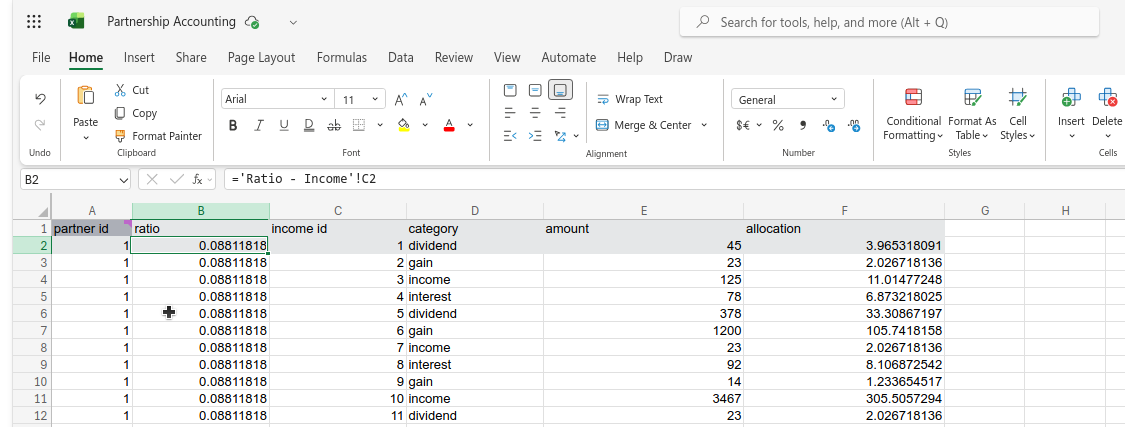
Zen shades rows 1 and 2 as the template rows since row 3 is a repeat of row 2.
Sometimes users inadvertently create more template rows than they intended. The following illustrates this effect.
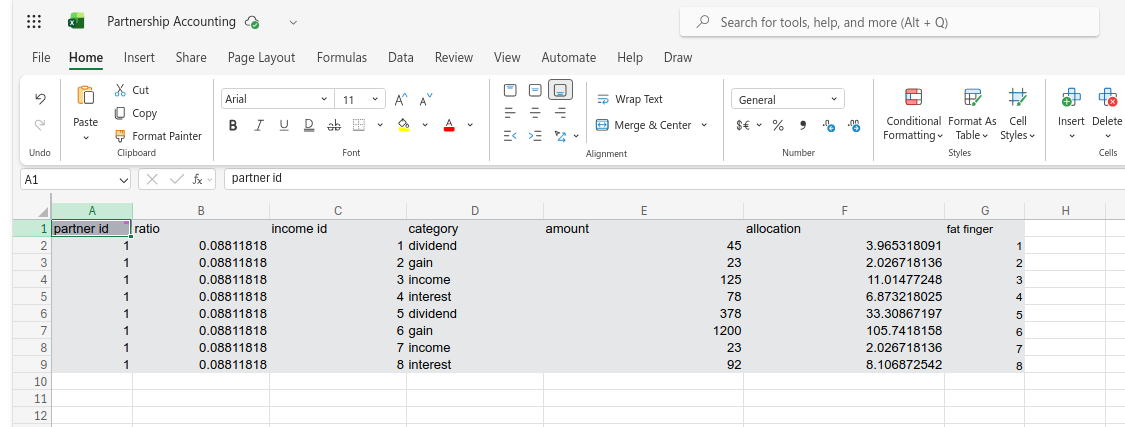
The user inadvertently copied values rather than formulas into column G, resulting in every row being different. Row 9 is now the end of the template. Zen will fill in the remaining rows using the formulas in row 9.
Users should be immediately suspicious of worksheets with more than two or three rows in the shaded template, as this is not usually by design.
Too many rows in a template can make it too large for Zen to analyze. To solve this, examine your worksheet to determine the reason for the larger template, then revalidate to ensure Zen reduces the template size to what you expect.
For performance reasons, Zen stops the analysis of templates at 100 rows!
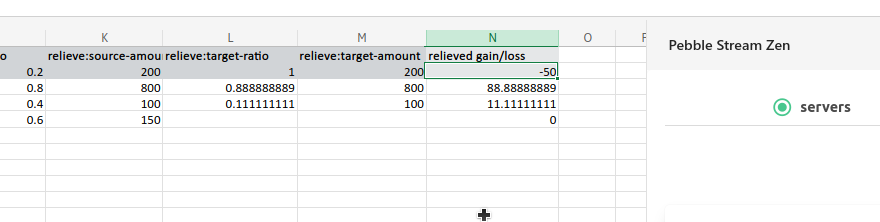
Calculated columns, like column N, have a lighter shading than columns that were produced by a directive, like K, L, and M.
The template shading can differ per column depending on whether the column contains a calculation formula or was generated by a transformative directive.
Spinning "validate" or "execute" buttons.
Sometimes, Zen will encounter temporary internal Excel Add-in issues that it cannot recover from. It will do its best to report where it encountered the error, but this is not always possible.
When this occurs when using Zen in the browser, try:
- Reloading the Add-in from the Home menu bar
- Reloading the web page
- Restarting your browser
- If the problem persists, make sure you are using Microsoft Edge or Google Chrome for the best experience.
When this occurs when using Zen in Desktop Excel, try:
- Reloading the Add-in from the Home menu bar
- Restarting Excel
If the problem persists, reach out to our support team.
If Zen is unable to explicitly report the worksheet that failed, it is a good bet that the execution stopped processing on the worksheet that caused the failure.
Grey screen on loading
Sometimes loading the Zen Add-in fails, resulting in a grey add-in screen. When this happens, follow the recommended approach outlined above for dealing with spinning buttons.
Cannot see the dependency graph
A missing dependency graph could be due to several factors.
Graph centered off pane.
One is that the graph has been centered offscreen. Try zooming out with the mouse scroll wheel, or click "validate" to recreate the graph.
Zen detected a validation error
Another reason could be that Zen detected an error during validation. Inspect the worksheet tabs to find a pink worksheet, then open the PebbleScript editor and enter the page for pink-colored cells. Read the comments in those cells for a hint on how to correct the situation.
Unexpected Excel Add-in error
Follow the procedure for dealing with spinning buttons .
Cannot access custom functions
Microsoft Excel supports custom functions for its Add-ins. Zen provides two types of custom functions:
Pebble Stream custom functions
These are utility functions provided as a supplemental package to paid Zen users. They are prefixed with the string "PS."; an example is "PS."MATCHES, an alternative to Excel's MATCH function.
Organization custom functions
These are custom functions commissioned by an organization for its members. They have a unique prefix and are only accessible to Zen users who belong to that organization.
Although all available custom function definitions are visible to Zen users, their use is limited to users within that organization.
If you believe you should have access to a custom function, but it is not loading, follow the procedure for dealing withspinning buttons .
Some functions have the prefix xldudf and won't execute
This is another version of Cannot access custom functions.
Updated 11 months ago